

It really is phenomenal how easy it is to edit photos these days.
And yet, for all the mind-blowing photo-enhancing options in front of us, one seemingly simple feat is oddly out of reach—and that’s editing multiple images together, in bulk, and applying the same adjustments to a bunch of images at the same time.
Google Photos may be the gold standard for easy and effective image editing, but it’s somehow still lacking that one capability.
Today, I’ve got a brand new Photos-enhancing power-up for you that fixes that, once and for all—while also adding in the overdue ability to free up a bunch of your Photos storage with next to no effort.
This tip originally appeared in the free Cool Tools newsletter from The Intelligence. Get the next issue in your inbox and get ready to discover all sorts of awesome tech treasures!
Bulk image edits made easy
The best part about today’s tool is the fact that it doesn’t force you to use anything new or different. It just adds new functions directly into the regular Google Photos editor, on the web, to address some awkward omissions.
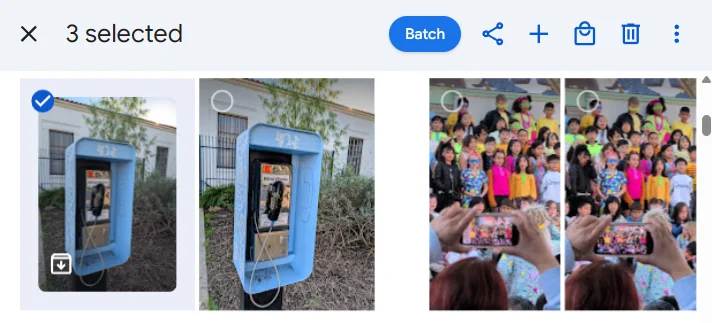
➜ It’s called, appropriately enough, Batch. And its primary function is pleasingly simple and straightforward: It adds a “Batch” button into the Photos web interface that lets you apply the exact same edits to multiple images at once.
⌚ We’re talkin’ less than a minute of active effort here.
✅ You quite literally just…
- Install the Batch extension for Chrome (or any other Chromium-based desktop browser).
- Select the photos you want, by clicking on ’em within the Photos website.
- Then click the “Batch” button that appears at the top-right of the screen.
Batch will then pop up a menu to let you pick from any of the usual Photos image enhancements.
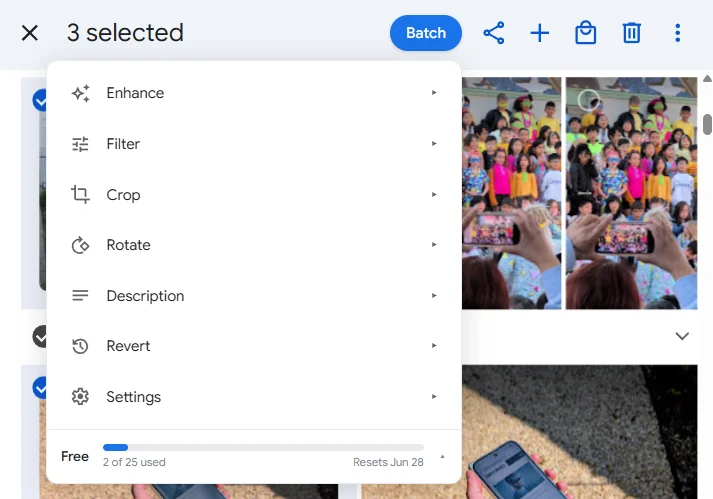
From there, you just sit back and let Batch work its magic. You’ll actually see it move through the photos you selected one by one and apply the exact edits you asked for in each one, right within Photos.

Everything happens right there, in your browser and within Google Photos. Batch is just handling the heavy lifting for you in a way that Photos on its own won’t allow.
When it’s done, you’ll get a notification at the top of the screen letting you know. And that’s it: Your images will be right there in your regular Photos library, with the edits applied—and if you ever need to undo anything, you can use the regular Photos undo command, just like you always would.

With the way Batch works, none of your data is ever uploaded anywhere or visible to anyone else. All the tool is doing is interacting with Photos in your browser, on your behalf, to make your life easier.
But when you need to enhance a whole bunch of images, crop a series of photos into the same web-friendly format, rotate a stack of photos in the same direction, or apply a consistent filter to a full album’s worth of memories—my goodness, can it be invaluable.
And if all of that isn’t enough, Batch can also convert motion photos into standard still photos for you in bulk—shrinking their size by as much as 80% and saving your precious Photos storage—and it’ll let you save your own custom presets for both batch editing and batch storage-saving to make future uses even easier.
- Batch works within the standard Google Photos website via a Chrome browser extension (which is also compatible with any other Chromium-based desktop browser—like Edge, Brave, and Vivaldi).
- It’s free for up to 25 images per month, which should cover lots of casual use. If you need it for more than that, you can pay seven bucks to bump up to 500 images for any given month.
- The extension doesn’t upload your images anywhere or have any manner of access to your Google Photos library. You don’t even have to create an account to use its free tier, so the service doesn’t end up having any data whatsoever about you.
💡 Don’t forget, too, about this classic Cool Tools treasure that handles basic bulk image edits (things like resizing, removing watermarks, or removing location data) incredibly well. These two tools are perfect complements and make for a powerful one-two punch.
Treat yourself to all sorts of time-saving goodies like this with the free Cool Tools newsletter—starting with an instant introduction to an incredible audio app that’ll tune up your days in truly delightful ways.